How to connect Claude to Quantery over MCP
Quantery ships with a built-in MCP server, which means the AI assistant you already use (Claude Code, Claude Desktop, or any client that speaks MCP) can drive the app for you: draft a thesis from your plain-language description, validate it, screen the US market with it, and run backtests, all against the data on your own machine. Connecting takes about two minutes. You flip one switch in the app, under Settings → Connect your AI assistant (MCP), and paste one command into Claude Code or one config block into Claude Desktop. The settings card shows both, prefilled with your real port and token.
That answers the how, and the walkthrough below fills in the details. But the back half of this post is about the question that decides whether any of this is useful: which part of the research loop belongs to a language model, and which part should stay in a deterministic engine. The split matters more than the plumbing.
What is MCP, and why put a server inside a desktop app?
MCP is the Model Context Protocol, an open standard that lets an AI assistant call tools that another program exposes. A program that speaks MCP publishes a list of things it can do; the assistant reads that list, calls a tool with arguments, and gets structured results back. No screen scraping, no watching you click: a typed, documented interface between the model and the machinery.
Quantery embeds an MCP server inside the desktop app, documented in the MCP section of the docs. Three properties are worth knowing before you turn anything on. It is off by default. It listens on 127.0.0.1 only, meaning your own machine, never the network. And every connection must present an access token that the app generates and shows you.
The design principle behind it: the assistant supplies the language intelligence, running on your own AI subscription or keys, and Quantery supplies the deterministic tools. Quantery never calls an AI model itself and never proxies your assistant's traffic through anyone's servers. Your thesis ideas move between two programs on your desk, and that is the whole trip.
How do you turn it on?
Open Quantery and go to Settings → Connect your AI assistant (MCP). Turning the server on reveals everything you need in one card: the port it is listening on (default 8765; if that port is taken the app falls back to a free one, and the card always shows the real port), the access token, and copy-ready connection snippets already filled in with both.
One requirement people trip over: Quantery must be running when your assistant connects, because the MCP server lives inside the app. Open the app first, then start the conversation.
How do you connect Claude Code or Claude Desktop?
For Claude Code, one command registers Quantery, and the settings card shows it ready to copy with your port and token substituted:
claude mcp add quantery --transport http http://127.0.0.1:8765/mcp --header "Authorization: Bearer <your access token>"For Claude Desktop, you add a short entry to its claude_desktop_config.json that points at a small bridge shipped inside the installed Quantery app. Don't write it by hand: the settings card shows the exact block with the real file paths for your install, and you paste it in. Neither method requires installing Node.js or anything else; the app carries what it needs.
Any other client that speaks MCP over HTTP can use the same endpoint and token. And the security model stays simple to reason about: the token is required on every request, and you can regenerate it from Settings at any time, which instantly cuts off every previously configured client. Your settings, secrets, and data-provider API keys are not exposed through MCP at all.
What can the assistant actually do once connected?
The tools fall into four groups:
- Browse your data. Overview of what's in your local lake, data availability by concept, individual tickers, and the metric series behind them. Useful for questions like "what fundamentals do I actually have for small caps before 2015?"
- Build and validate theses. The assistant drafts a thesis from your description, then checks it against the schema and gets structured errors back, which means it can fix its own mistakes before you ever see the file. It can save the result as a new thesis or a new version of an existing one.
- Run screens. A quick check of a few symbols, or the full universe scan the app itself runs.
- Run backtests. The same point-in-time, survivorship-aware backtests as the app, then read the results back.
In practice you say things like: "Open the Earnings Yield + Quality template, tighten the returns-on-capital threshold to 25 percent, save it as a new version, and run it." Or: "Draft a screen in the spirit of the cash-gusher thesis: high free cash flow yield, earnings backed by cash, and a drawdown from the 52-week high. Validate it and show me the rules before running anything."
That last clause is the habit worth building from day one. Ask to see the rules.
What does the loop look like in practice?
Everything the assistant does over MCP lands as ordinary, inspectable app state. A drafted thesis is not a chat artifact; it is a file in your thesis registry, and it opens in the visual builder like anything else you or the templates put there.
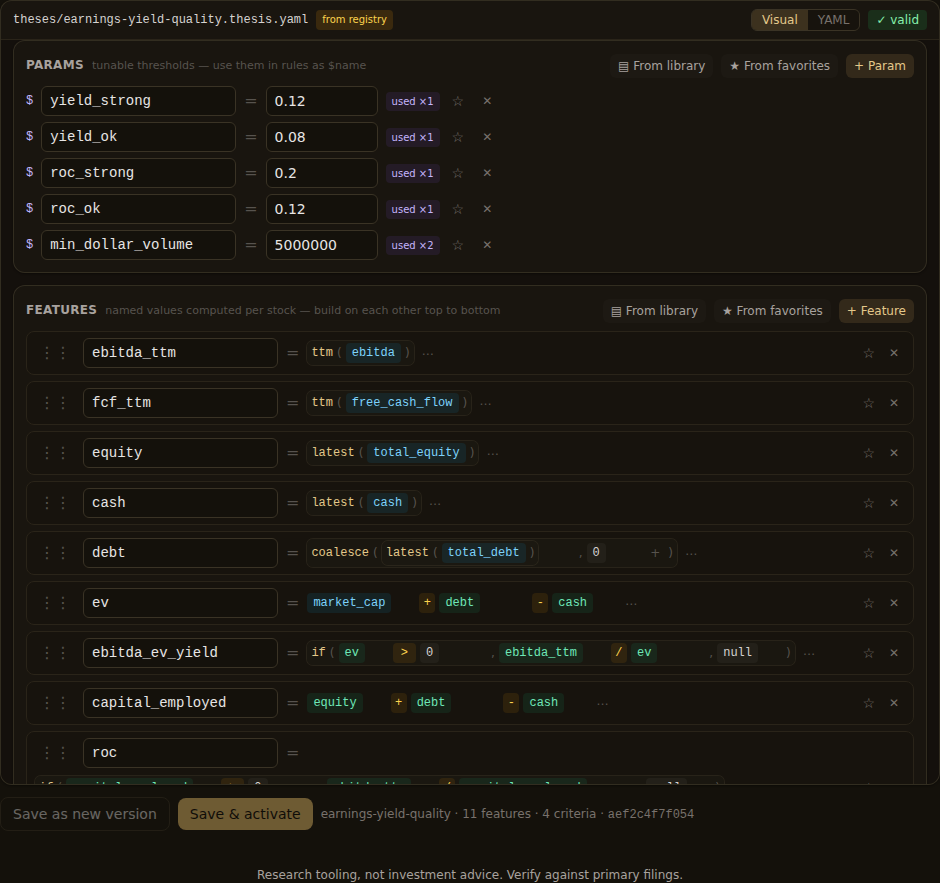
That screenshot is the audit surface. When an assistant writes a thesis for you, the transcript will summarize it flatteringly; the builder shows what it actually wrote. Every parameter, every feature formula, every scoring rule, in the same plain form as the bundled templates. Reading it takes two minutes, and it is the difference between using the assistant and trusting it.
Runs work the same way. For this post we ran that template as a full-universe, quant-only scan (the optional AI-scored qualitative criteria left unscored, which is why the verdict column reads UNSCORED): 332 names passed the gate on the August 12, 2026 run, and the run sits in the app's history like any scan started from a button.
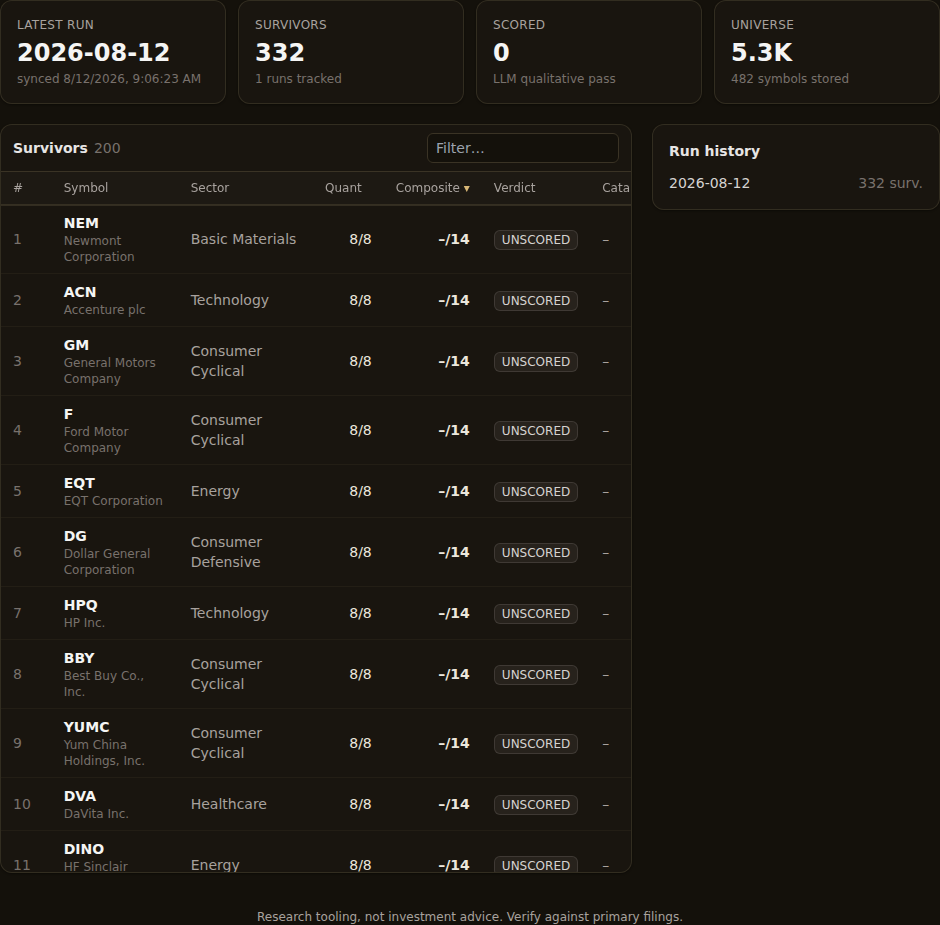
Two details make this loop safe to hand to an assistant. Saving a thesis creates an immutable version, and every scan records which version produced it, so an enthusiastic assistant editing your screen five times in an afternoon cannot quietly change what yesterday's results meant. And scans queue behind data jobs rather than colliding with them, exactly as they do when you click the button yourself.
What does this fix, and what can it still get wrong?
Asking a chatbot for stock ideas has two classic failure modes. The numbers have no provenance: a model can assert a free cash flow yield that is stale, misremembered, or invented, and the transcript looks identical either way. And nothing is reproducible: ask twice, get two different answers, with no artifact you could re-run.
The MCP split addresses both, because the model stops being the source of numbers. Every figure comes out of the engine, computed from point-in-time filings on your machine, and every survivor's criteria show their values and sources one click deep. Every run is persisted against a pinned thesis version, so the record of what you tested is the saved thesis and the run history, not the conversation. The chat is scaffolding; the thesis is the work product.
Two failure modes remain, and they are yours to manage. The first is translation risk. You say "cheap," and the assistant has to pick a proxy: trailing P/E, EBITDA over enterprise value, free cash flow yield. Those are different theses that surface different companies, and a fluent summary can paper over which one you actually got. The cure is the one from building a thesis worth testing: read the proxies, in the builder, before you believe any output.
The second is subtler: an assistant makes iteration nearly free, and cheap iteration is how overfitting happens. Forty variants before lunch is forty chances to find a screen that memorized the past, and a helpful model will happily hand you the best-looking curve. The discipline in what makes a backtest honest matters more when the dial-turning is this fast, not less: decide in advance what would falsify the idea, prefer results that survive perturbation, and remember that every backtest here is hypothetical and excludes costs, whoever typed the run command.
None of that is a reason to skip the setup. It is the reason the setup is worth doing: you get an assistant that is a fast pair of hands on a machine built for auditability, instead of an oracle asking to be believed. The assistant can type the first draft of your next thesis. The rules it types are still yours: yours to read, yours to change, and yours to test.
Research tooling, not investment advice. Nothing here is a recommendation to buy, sell, or hold any security. Screens, scores, and backtests are informational only; backtested results are hypothetical, exclude costs such as commissions and slippage, and do not guarantee future results. Verify against primary filings and make your own decisions.
Want to try this on your own rules? Quantery is free for 14 days: the full app, no card required.
← All articles